Edit a video by editing its transcript
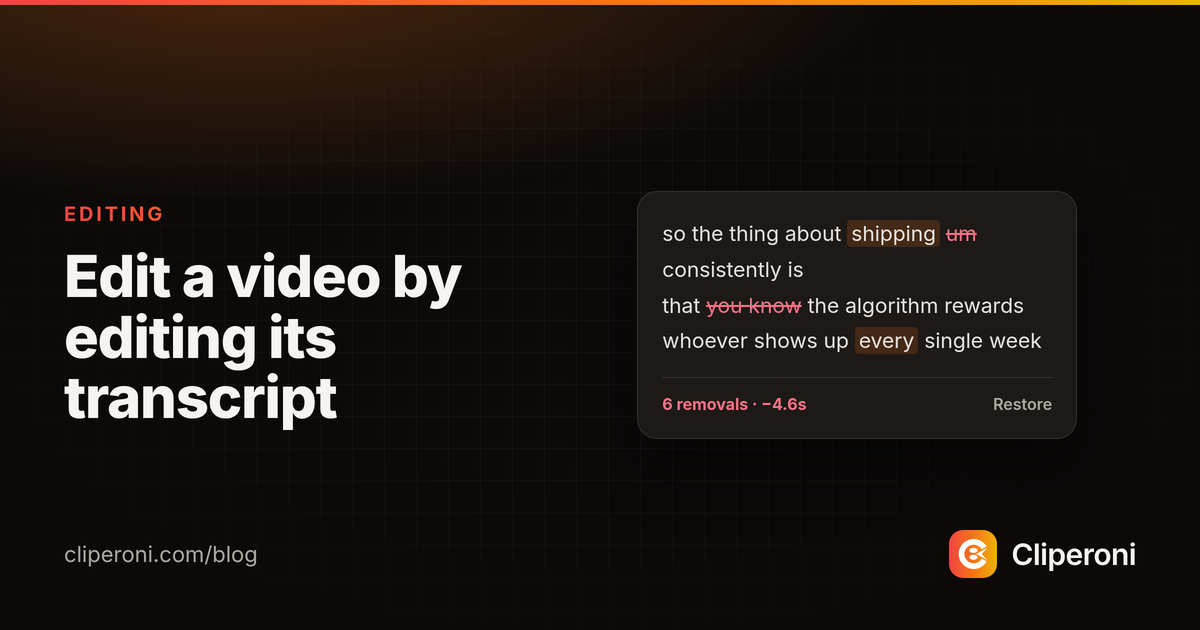
In short: Cliperoni lets you edit a clip by editing its transcript. Click a word and choose Remove and the video skips right over it — no timeline, no keyframes. You can cut a single word, a whole phrase, or sweep every "um" in the clip at once, and every cut is reversible.
Key takeaways
- Edit the video by editing the words — deleted words are cut from the render.
- Sweep every filler word ("um", "like") from a clip in one action.
- Four ways to cut: one word, a dragged phrase, a range across two taps, or a clip-wide sweep.
- Nothing is destructive — cuts show struck through with a per-word Restore.
- Fix a misheard word across one clip or the whole recording in a step.
How do you edit a video by editing text?
In Cliperoni you edit a clip through its transcript instead of a timeline. Click a word, choose Remove, and the section of video where that word was spoken is cut from the clip you download or publish. There are no keyframes or scrubbing — tightening a rambling answer is as direct as deleting the words you don't want.
How do you remove filler words?
Click any "um" and choose "Remove all um in clip", and Cliperoni cuts every instance from the clip at once — it even tells you how many there were. It's the fastest way to clean up the verbal tics that make a good moment feel unpolished, without hunting for each one by hand. The matcher is precise about word boundaries, so removing "like" won't touch "likely".
What are the four ways to cut?
Cliperoni gives you four removal gestures for different situations:
- One word — click it and Remove.
- A phrase — drag to select several words and remove them together.
- A range — mark a start and an end across two taps to cut everything between, even across sentence breaks (handy on a phone).
- A sweep — remove every instance of a filler word in the clip in one action.
Can you undo a cut?
Yes — nothing here is destructive. Removed words stay visible, struck through, and a strip shows how many words you've cut and how much time you've shaved off. Each removed word has a Restore, so you can put anything back, and your cuts stick even after you edit other text or widen the clip.
How is this different from trimming?
Transcript editing is the precise, manual counterpart to Cliperoni's automatic pause-tightening. Auto-tighten removes dead air across the whole clip; transcript editing lets you take out the specific words — a flubbed sentence, a tangent, a wall of "um" — that trimming silence can't touch. Together they get a clip from raw to tight without ever opening a traditional editor.
Try it
Open a clip, click a word in the transcript, and watch the video cut itself.
Frequently asked questions
- How do you edit a video by editing text?
- In Cliperoni you edit a clip through its transcript: click a word and choose Remove, and the clip you download or publish skips right over that section — no timeline, no keyframes, just editing the words.
- How do I remove filler words like 'um' from a clip?
- Click any 'um' and pick 'Remove all um in clip', and Cliperoni cuts every one of them from the clip in a single action, showing how many it removed.
- Can I undo a cut?
- Yes. Removed words show struck through, a strip tells you how many you've cut and how much time you've saved, and each word has a Restore, so nothing is destructive.
- Can I fix a misheard word everywhere it appears?
- Yes. You can replace a word across a single clip, or everywhere it appears in the whole recording, in one step.