How to clip an X Space
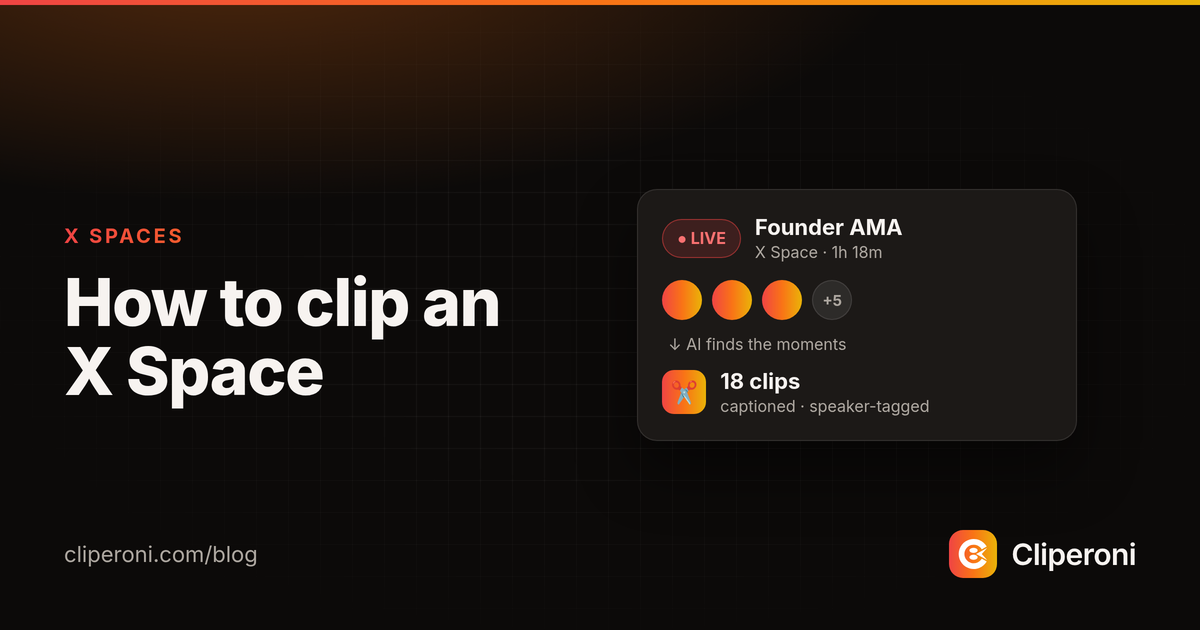
In short: To clip an X Space, paste the Space's link into Cliperoni. It transcribes the audio, tags the speakers, finds the best moments, and turns them into captioned, social-ready clips — for both live and recorded Spaces. You don't scrub through hours of conversation.
Key takeaways
- Paste a Space link and Cliperoni handles download, transcription, and clipping.
- Works for live Spaces too — it waits and retries until the recording is ready.
- Speakers are detected and tagged, so captions follow the right voice.
- Audio Spaces come out as designed clips (captions + waveform/cover art), not a blank screen.
How do you clip an X Space?
You clip an X Space by pasting its link into Cliperoni and letting the AI do the rest. Cliperoni pulls the Space's audio, transcribes it word-for-word with speaker tagging, scans the transcript for the strongest moments, and returns captioned clips you can review, trim, and post. There's no manual scrubbing — the good moments come to you.
Can you clip a Space that's still live?
Yes. If you add a Space that hasn't finished yet, Cliperoni doesn't just fail — it waits and retries until the recording is available, then processes it automatically. So you can queue a Space the moment it starts and come back to clips once it wraps.
How does it handle multiple speakers?
Cliperoni detects who is talking and tags speakers through the clip. That means a multi-guest Space gets captions and a speaker highlight that stay in step with whoever has the floor, instead of drifting or flickering between voices — which is what makes a debate or panel readable as a short.
What do X Space clips look like?
Because a Space is audio, Cliperoni renders it as a designed clip rather than a recording of a screen: word-level captions, a title, and either a waveform or a full-frame background. The result looks like a made-for-social video, so an audio moment still stops the scroll on TikTok, Shorts, or X.
Why Cliperoni for X Spaces?
Most clipping tools treat Spaces as an afterthought bolted onto a YouTube-first pipeline. Cliperoni treats X Spaces as a first-class source — native live and recorded ingest, speaker detection, and audio-first clip designs — because Spaces are where a lot of the best long-form conversation actually happens.
Try it
Grab a Space link, paste it into Cliperoni, and see what it pulls out.
Frequently asked questions
- How do I clip an X Space?
- Paste the Space's link into Cliperoni. It downloads the audio, transcribes it with speaker tagging, finds the strongest moments, and hands you captioned clips ready to post — for both live and recorded Spaces.
- Can I clip a live Space that hasn't ended yet?
- Yes. If you add a Space before it has finished, Cliperoni waits and retries instead of failing, then processes it once the recording is available.
- Does it know who is speaking?
- Yes. Cliperoni detects and tags speakers, so multi-guest Spaces get captions and a speaker highlight that follow whoever has the floor.
- What do X Space clips look like if there's no video?
- X Spaces are audio, so Cliperoni renders them as designed clips — captions, a title, and a waveform or cover-art background — instead of a static screen.